Though Numenera tends to not have much math or complicated steps when performing an action, having access to quick macros in online play can help keep a game running along smoothly.
Roll20s macros involve their own language which is worth learning, but when using the official Cypher Systems character sheet, creating macros as a player or GM is actually quite simple and doesn’t require much if any familiarity with writing macros from scratch. This essay will show you how to make simple macros that call to functions on your character sheet, allowing you to speed up the flow of your game and provide you with ease of access to your most used abilities. This is a great solution for anyone looking for a smoother game, but is also perfect for those with limited screen real estate.
While this essay doesn’t require you to understand any of Roll20’s macro coding language, it does assume some familiarity with the Cypher Systems character sheet in Roll20, though this is a pretty simple character sheet to jump into and understand.
Setting up the Cypher Systems Character Sheet
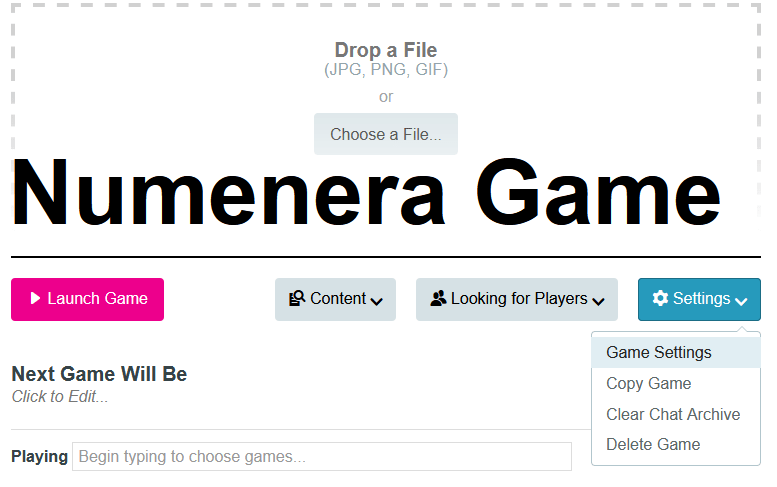
The settings for a Roll20 game’s character sheet can be found in the “Game Settings” area and under “Character Sheet Template.”
The Cypher Systems character sheet in Roll20 offers a few options when it comes to how you want each roll to be processed. The one’s we’re concerned about for this essay include the “ROLLS TYPE:” and “USE” section. While you can take the the information from this essay and tailor it to your liking, I will be basing this process on a character sheet which has the ROLLS TYPE set to “Roll Queries” and under USE, “Assets” “Bonus” and “Costs” will all be checked.
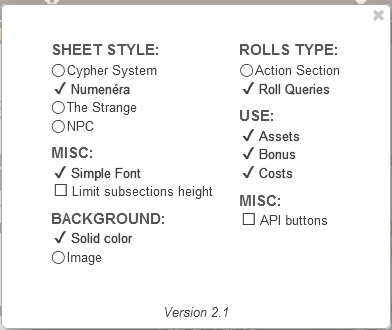
This means that every time a macro is clicked, a prompt will show up for the player, asking if there’s any bonus to the roll, what the Difficulty is, or if it is known, how much Effort the player wishes to apply to the roll, whether or not there are any Assets, or whether or not there’s an additional cost in Stat Pool points for the action in question.
Entering in all this information results in a fairly straightforward readout of the result of the dice, what influenced the Difficulty Level, how many points ought to be taken from the player’s pool and whether or not the action was a success or not.
Finding the Macro Code
Every time you click one of the options in a character sheet in Roll20, a series of code is executed that makes calls to specific stats on the sheet, and factors them into the game’s rules for “success or failure.”
This code is usually hidden, but the trick to recovering it is to click into the chat box and once your cursor begins blinking, simply press “UP” on the arrow key. This will bring up the last command you issued.
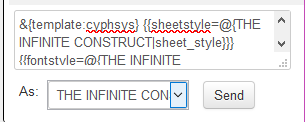
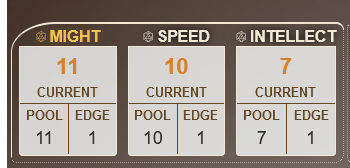
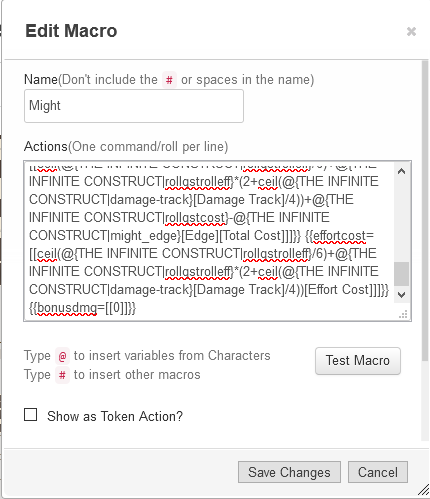
Clicking “Might” in a Cypher System character sheet will ask Roll20 to make a roll using the rules of the Cypher System. Once this roll has been performed, we can then click into the chat box and press UP on the arrow keys to grab the code for Rolling “Might.” It will look something like this.
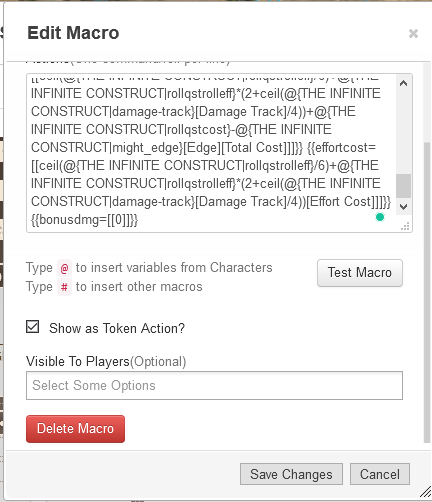
You don’t need to understand any of this code to make a macro out of it. Just take that text, head on over to the “Collection” tab in Roll20s menu, click “+Add” in the Macros section, name the macro “Might” and then paste the code you just grabbed from the chat text into the “Actions” box. Go ahead and test your macro to make sure it’s working perfectly, then save it and you now have the ability to make a “Might Roll” without needing to open your character sheet. Roll20 will prompt you for the Roll Queries each time you use this macro, and it will calculate it just as if you clicked it in the character sheet itself.
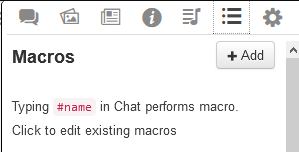
Let’s take another example. This example character is Trained in Perception, a skill likely to get a lot of use and therefore perfect for a macro.
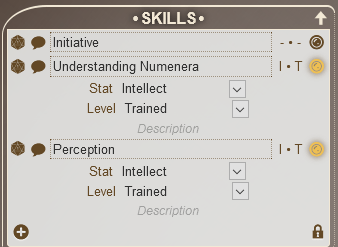
In order to get the code for the Macro, we’ll need to roll perception out of the character sheet—as you might have noticed, creating Macros this way means that you’ll have to roll for the sake of getting the code, meaning that this is best done before or after a game session.
Click the die next to the Perception skill and Roll20 will ask you for some information, then make a Perception Roll. Go into the text chat and press UP on the arrow keys to grab the Macro code. As a rule of thumb, I always use cut instead of copy when moving the code over as it clears my text chat so that I don’t accidentally grab the wrong code if I’m building a lot of macros.
Add a new Macro, name it “Perception” and paste the code you cut from the text chat into the Actions box. Test out the macro to make sure it indeed rolls accurately, and then save the Macro.
Macro Buttons
While you can just click on the macro titles in the macro section to use them, the real goal here is to have these macros be clickable buttons on the main screen for ease of access. Before we do this, however, we’ll need to decide who will be using this Macro. If you are a GM building macros for your players, you’ll need to make sure they have access to this macro. When editing a Macro in the edit section, at the bottom you can decide if no players, all players, or only certain players can access this. Choose the player this ability corresponds to and save the changes.
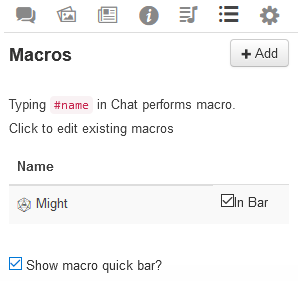
You’ll want to ask this player to make sure that they check “In Bar” if they wish to see the macro at the bottom of the screen. Here they can rearrange the macros, or even assign different colors to help navigate a screen with a lot of different abilities.

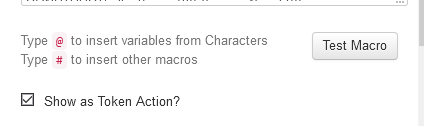
By checking “Show as Token Action” in the Macro edit section, the Macro buttons will only appear when the token associated with this character sheet is selected on the map. This is really helpful for assigning “Initiative” to a macro as rolling Initiative and being added to the turn order requires a token to be selected first.

You can also assign macros to items on the character sheet which do not involve a die roll. This is helpful for special abilities which may be beneficial to have the text called up as it will detail the related Stat, the cost, and whatever information you include about the ability.
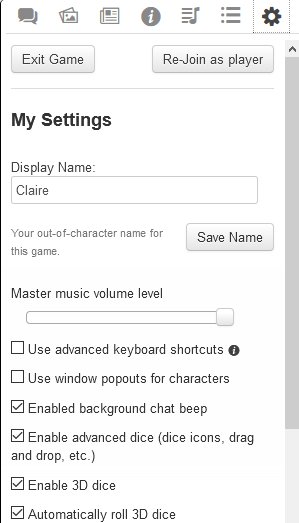
Virtual Tabletops are never a 1:1 replacement for gaming at an actual table. That said, there are a number of advantages to using a service like Roll20. Though the Cypher System is by no means a numbers-heavy set of rules, having a simple button press for commonly used actions is a great way to keep the game flowing and can even help players who aren’t as used to navigating Roll20s interface or character sheets. GMs hosting games might benefit from taking some time out to build macros using this method for their players and just walking them through the step of making sure they can access them. If you still want to retain that tabletop feel or the theater of everyone seeing a roll result, turning on 3D dice can do the trick quite nicely.
In a future entry, I’ll go into how to create a universal d20 macro that just calculates a flat d20 roll against the Cypher System’s difficulty chart and displays it in the chat with the correct formatting. This requires a bit more setup and some editing of macro code, so it’s a bit more involved. For now, though, getting used to building macros for player abilities is a great way to take advantage of one of the strengths of using a service like Roll20.
//
Claire (She/They)
 THE INFINITE CONSTRUCT